Most lists of n8n workflow examples show a diagram and stop. This one tells you what to build, which nodes to use, what data to test with, what the result should look like, and what should fail. Each example is small enough to build in under an hour (our estimate) and useful enough to keep. If you have never built a workflow, start with our guide to building your first n8n workflow, then come back here.
How to Read These Examples
Every example uses the same four-part pattern: trigger, check, action, alert. The trigger starts the run, the check decides what to do, the action does the work, and the alert tells a person when something goes wrong. Each one lists:
- Nodes: the n8n nodes to add, in order.
- Test data: something you can copy.
- Expected result: what you should see.
- Break it: a bad input that should be handled, not ignored.
Names of nodes and menu options can change between n8n versions, so check them against the editor and the official n8n documentation as you build. In expressions below, we use bracket notation such as {{ $json["body"]["email"] }} because data sent to a webhook arrives under body. Confirm the path with a test run.
Which One Should You Build First?
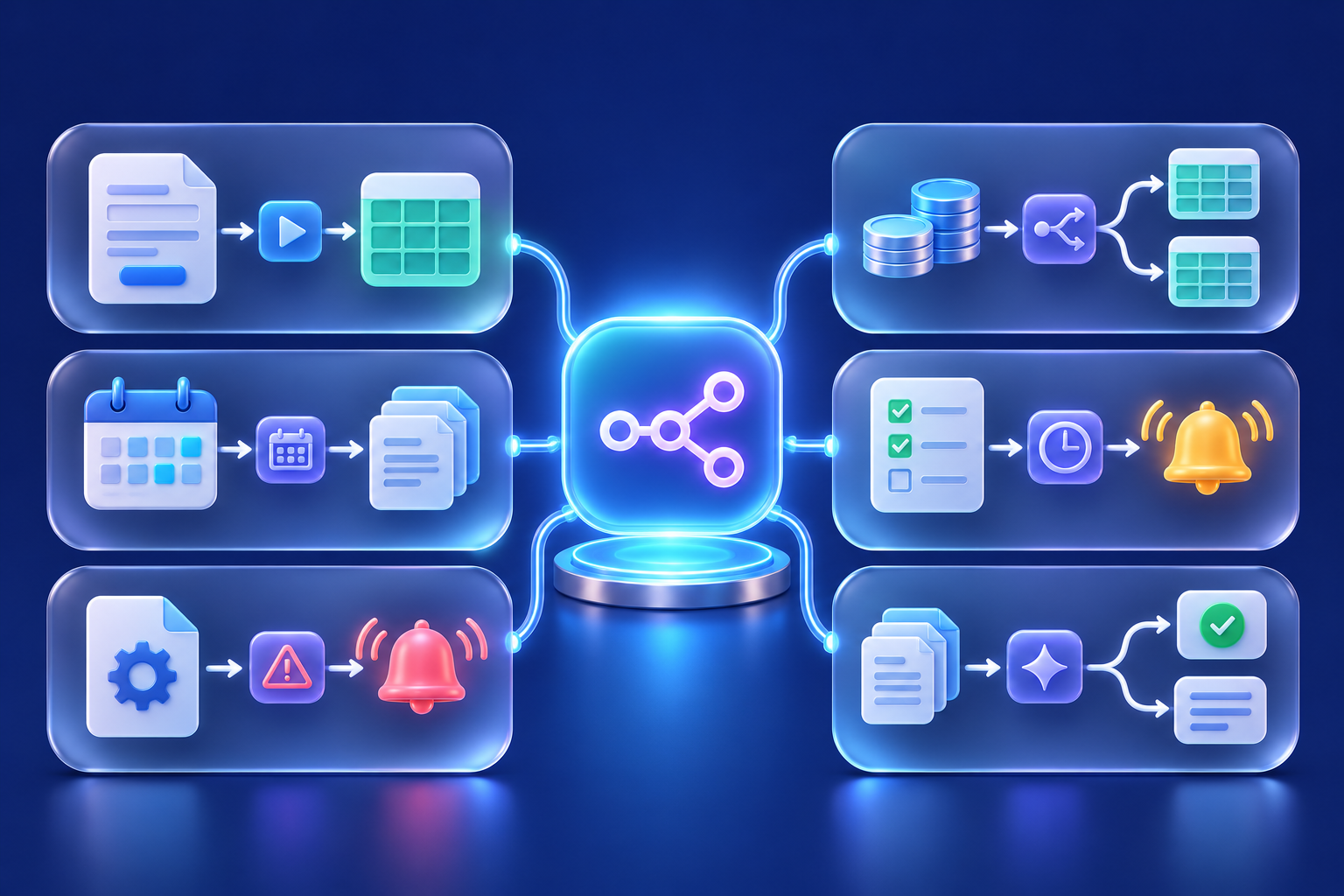
| Example | Trigger | Difficulty | Time (our estimate) | Needs an outside account? |
|---|---|---|---|---|
| 1. Form to spreadsheet | Webhook | Easy | 30 min | Google account |
| 2. Lead router by budget | Webhook | Easy | 45 min | Slack or email |
| 3. Weekday morning summary | Schedule | Easy | 40 min | Google account, Slack |
| 4. Overdue reminder | Schedule | Medium | 60 min | Google account, Slack |
| 5. Failure alert | Error Trigger | Easy | 20 min | Slack or email |
| 6. AI request sorting | Webhook | Medium | 75 min | An AI service |
Our suggestion: build 1, then 5. The failure alert makes every later workflow safer.
1. Form to Spreadsheet
Use it when someone currently copies form entries into a sheet by hand.
Nodes: Webhook, Edit Fields, Google Sheets.
- Add a Webhook node set to accept POST requests and point your form at its Production URL.
- Add an Edit Fields node with Manual Mapping to pick only the fields you want: name, email, message.
- Add a Google Sheets node and choose Append Row. Map each field to a column.
{ "name": "Maya Chen", "email": "maya@example.com", "message": "Quote for 2 rooms" }Expected result: one new row at the bottom of the sheet, with the three fields in the right columns.
Break it: send the same email twice. Append Row adds two rows. To stop duplicates, use Append or Update Row and match on the email column, which updates the matching row or adds a new one.
2. Lead Router by Budget
Use it when big leads need a faster reply than small ones.
Nodes: Webhook, Switch, a message node for each route.
- Add a Webhook node.
- Add a Switch node in Rules mode. Rule 1 sends leads with a budget of 5,000 or more to sales. Rule 2 sends budgets from 1,000 to 4,999 to nurture.
- Turn on Fallback Output and choose Extra Output, so anything else goes to a third path instead of being dropped. The default drops unmatched items.
- Connect each output to a Slack or email message.
{ "name": "Dev Patel", "email": "dev@example.com", "budget": 8000 }Expected result: a sales message for 8,000, a nurture message for 2,500 and a needs-review message for 400.
Break it: send "budget": "ask me". A text value is not a number, so it should reach the fallback output, not fail silently. If it does not, check the data type in your rules.
3. Weekday Morning Summary
Use it when you want a short status message at the start of the day.
Nodes: Schedule Trigger, Google Sheets, Edit Fields, a message node.
- Add a Schedule Trigger with a custom cron expression. The n8n docs give
0 9 * * 1-5as an example for weekdays at 9:00 AM. - Add a Google Sheets node with Get Row(s) to read today's items.
- Add an Edit Fields node to build one line of text, such as "5 open orders, 2 due today."
- Send the line to Slack or email.
Test data: a sheet with rows like Order 101, due 2026-11-12, open.
Expected result: one message with the right counts. Test it first by running the workflow manually.
Break it: empty the sheet. The message should say "0 open orders," not fail.
Remember: a scheduled workflow must be saved and published before it runs on its own. Set the workflow time zone, because the node falls back to the instance time zone if none is set.
4. Overdue Reminder
Use it when items slip past their due date and nobody notices.
Nodes: Schedule Trigger, Google Sheets, If, a message node.
- Add a Schedule Trigger to run once a day.
- Add Google Sheets with Get Row(s), using a filter for status open.
- Add an If node that checks whether the due date is before today.
- On the true branch, message the owner with the item name and due date.
| Item | Owner | Due | Status |
|---|---|---|---|
| Send contract | sam@example.com | 2026-11-01 | open |
| Book venue | lee@example.com | 2026-12-01 | open |
Expected result: a reminder for Send contract only, if today is after November 1, 2026.
Break it: leave a due date blank. Decide in advance what should happen: skip it, or send it to a person for review. A blank date is a data problem, so flag it.
5. Failure Alert
Use it when a workflow stops and nobody notices.
Nodes: Error Trigger, a message node.
- Create a new workflow that starts with an Error Trigger node. Save it with a clear name.
- In the workflow you want to watch, open Options > Settings and choose this workflow under Error workflow. Save.
- Add a message node to the error workflow. Include the workflow name, the last node that ran, the error message and the execution link.
According to the docs, the Error Trigger gives you values such as workflow.name, execution.lastNodeExecuted, execution.error.message and execution.url. One error workflow can serve many workflows.
Expected result: when a watched workflow fails, you get a message that says which workflow and where.
Break it: deliberately break a watched workflow, for example with a wrong sheet ID, and run it. The docs note that if the failure is in the trigger node itself, the execution link is missing, because nothing was saved.
6. AI Request Sorting With a Human Check
Use it when you get free-text requests and want them sorted by topic.
Nodes: Webhook, an AI step (an HTTP Request to your AI provider, or an AI node), Edit Fields, Switch, message nodes.
- Add a Webhook for incoming requests.
- Add the AI step. Ask it to return one word from a fixed list: billing, bug, question or other. Put the list in the instructions.
- Add Edit Fields to store the category.
- Add a Switch with one rule per category and the Fallback Output set to Extra Output, which becomes your needs-a-person path.
- Send every route to a person to check, at least for the first two weeks.
{ "from": "sam@example.com", "text": "I was charged twice for my order." }Expected result: category billing, sent to the billing route.
Break it: send "text": "asdf". The AI may guess. Your list should include other, and anything unclear should reach a person. Never let this workflow answer customers on its own at the start. For more on adding AI safely, see our guide to an AI chatbot for business.
Test Any Workflow in 5 Steps
- Run it manually with the copyable test data before you publish.
- Check the Executions tab to see what each node received and returned.
- Send the bad input from the Break it line. It should be handled, not ignored.
- Publish and use the Production URL for a real test. Test and Production URLs differ.
- Watch the first 20 real runs before you trust it.
When Not to Automate
- Rare tasks. If it happens twice a month, building it may cost more time than it saves.
- Unclear steps. If two people do it differently, agree on one method first.
- High-stakes decisions. Do not let a workflow alone decide refunds, hiring or eligibility.
- Sensitive data you have not reviewed. Check the privacy documentation of every connected service.
Not sure which process to automate first? The free AI Workflow Map helps you list and prioritize your processes. Download now. If you are choosing between platforms, read n8n vs Zapier vs Make.
Want a Second Pair of Eyes?
New Age AI's free AI Strategy Call is a 60-minute consultation with an AI expert, a tech stack audit of your current workflows, three automation ideas tailored to your business, and an action plan PDF sent after the call. Book a strategy call, or see our services.
Final Thoughts
The best n8n workflow examples are small, boring and tested. Build the form-to-sheet workflow, add the failure alert, then pick one more from this list that matches a task you repeat every week. Break each one on purpose before you trust it. When you are ready for help choosing what to automate, book a strategy call.
This article is general information, not legal, financial, or security advice. Tools, features, and pricing change often; check each vendor's official documentation before you build or buy.
Quick answers
Frequently asked questions
Want to map the right workflow first?
Talk through the repetitive work in your business and identify the automation opportunities worth prioritizing.
Book a strategy call