If someone on your team retypes invoice details into a spreadsheet, that is the task AI document processing is built for. The tool reads the file, pulls out the fields you need, and a few rules decide whether the result is safe to save or needs a person to look at it. This guide shows a small, practical version: one document type, a handful of checks, a review step, and a 20-document test so you can see how well it works before you rely on it.
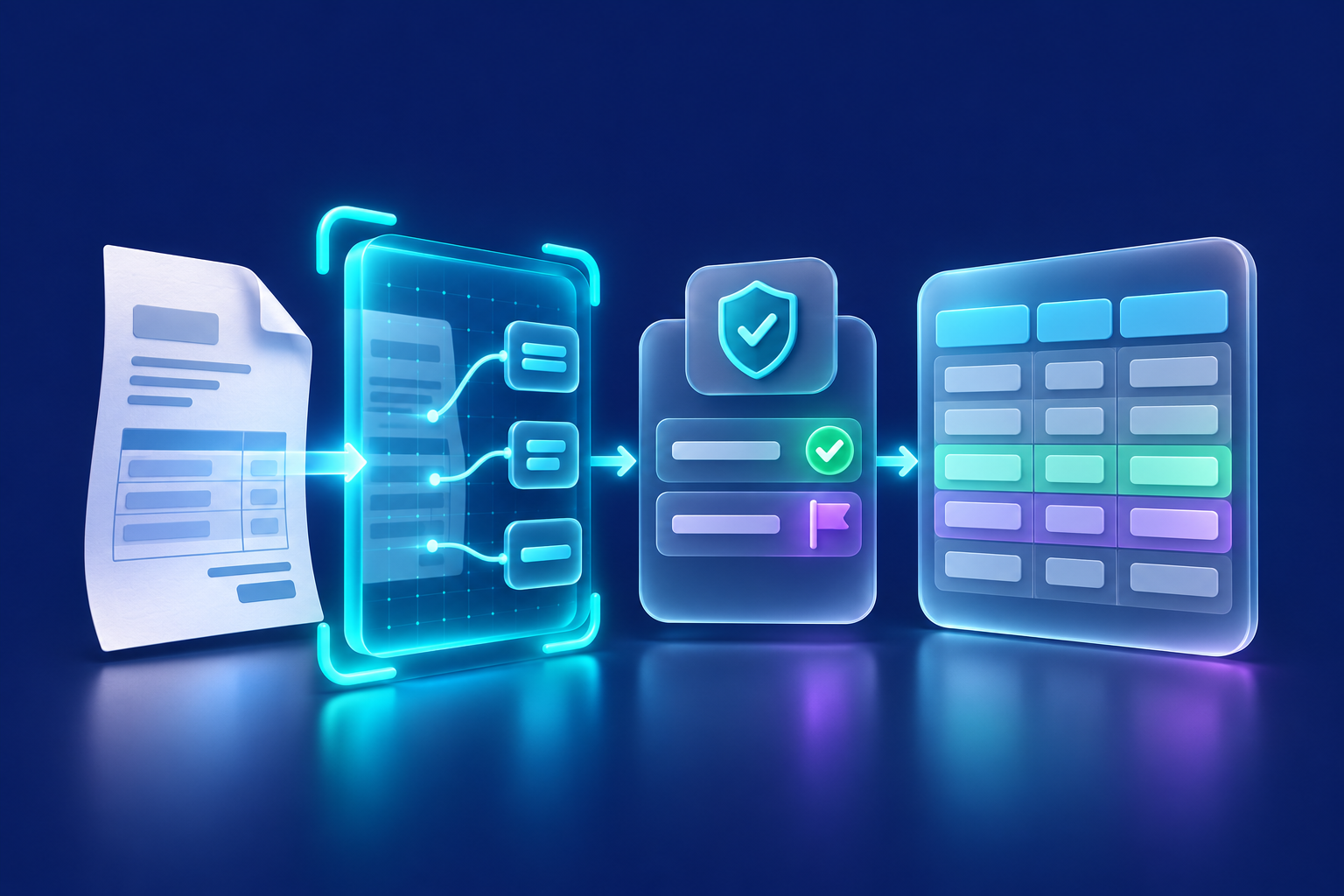
Quick answer (as of November 2026): AI document processing reads files such as invoices and returns structured fields, like date, number and total. A safe small-team workflow has five parts: capture the file, extract the fields, check them with simple rules, send doubtful ones to a person, and save the approved rows. Test it on about 20 of your own documents before you trust it. A first pilot takes roughly one to two days (our estimate).
Scope: US-focused small teams. Vendor details come from documentation pages checked in November 2026. They are examples, not endorsements. Features and limits change, so check each vendor's current documentation before you build.
What AI Document Processing Is
AI document processing turns a file into data. It usually combines OCR (software that reads text from an image or PDF) with an AI model that decides which text is the invoice number, which is the total, and which lines are items. The result is structured data: named fields you can put in a spreadsheet or database. Many services also return a confidence score for each field, which is a number showing how sure the model is.
Vendor documentation shows what this looks like in practice. Amazon Textract's invoice and receipt feature extracts fields such as date, number, item prices, total amount and payment terms, and returns a confidence value for each. Microsoft's Document Intelligence invoice model handles invoices, utility bills, sales orders and purchase orders in PDF and common image formats.
Takeaway: the tool reads and suggests, and your rules and your people decide.
Which Documents to Start With
Start with one document type that is common, consistent and low risk.
| Document | Good first choice? | Why |
|---|---|---|
| Supplier invoices | Yes | Same fields every time, high volume |
| Receipts for expenses | Yes | Few fields, easy to check |
| Order or intake forms | Yes | Often typed and clean |
| Contracts and legal letters | No | They need judgment, not data entry |
| Handwritten notes | Not yet | Test carefully first |
| Medical or ID documents | No | Sensitive data and compliance rules |
This guide uses supplier invoices.
The Workflow in Five Parts
Every document workflow has the same five parts, whatever tool you build it in.
- Capture. A file arrives in a shared inbox or folder, and the workflow starts.
- Extract. The file goes to an extraction service, which returns fields and confidence scores. Most workflow tools can call a service through an API.
- Check. Simple rules test the numbers and dates, as shown below.
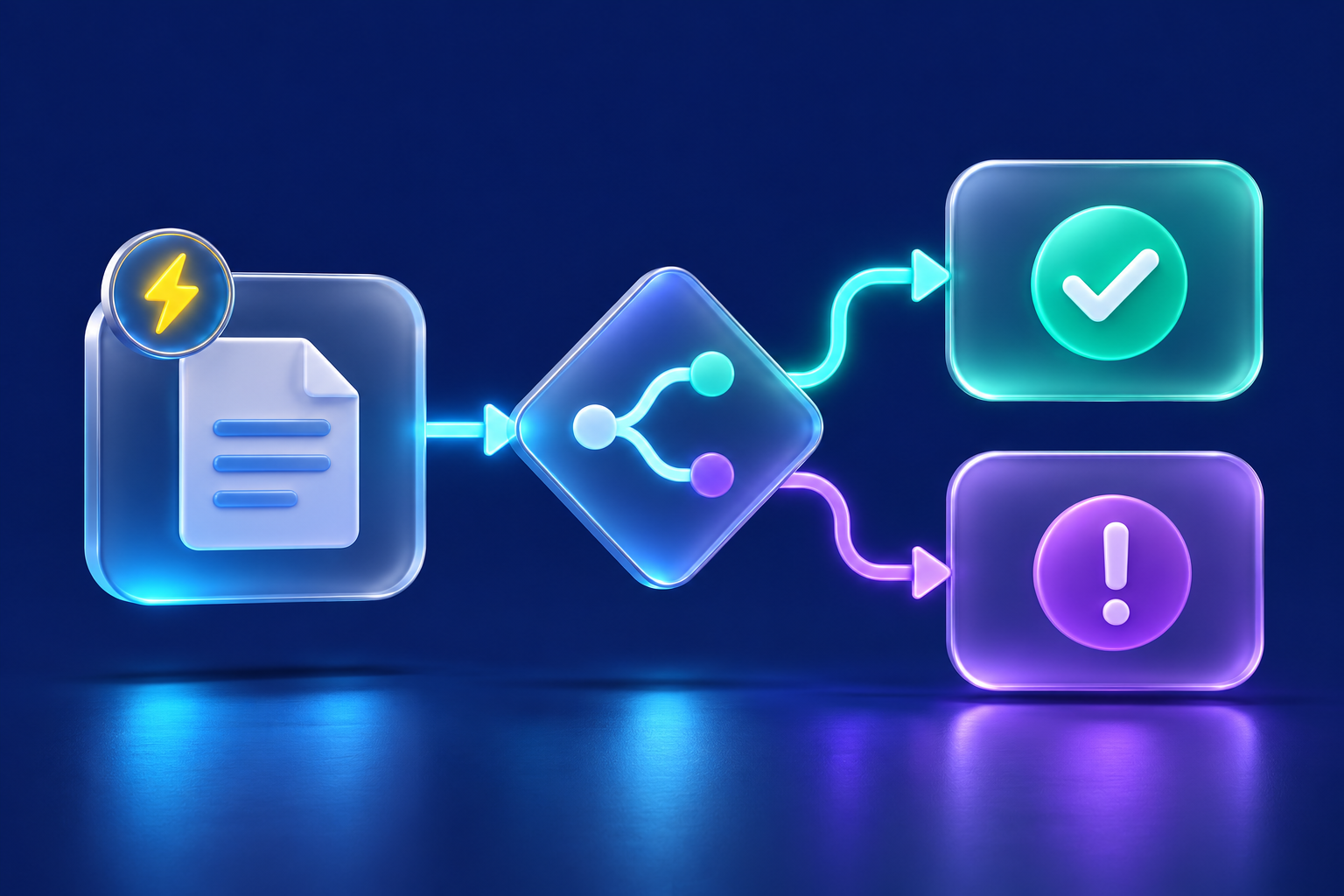
- Route. Documents that pass and have high confidence go on. Everything else goes to a person.
- Save and log. Approved data is saved to your spreadsheet or accounting system, and every document gets a log line.
Workflow tools like n8n can run this chain. If you are new to building, start with our guide to building your first n8n workflow.
Sample Input and Output
Use fake documents to test. This is a sample invoice, with its extraction result.
The invoice (fake): Blue Door Supplies, invoice INV-1042, dated 2026-10-12, due 2026-11-11. Two lines: 2 paper reams at $18.50 each ($37.00) and 1 toner at $62.00. Subtotal $99.00, tax (8%) $7.92, total $106.92.
{
  "vendor": {"value": "Blue Door Supplies", "confidence": 0.98},
  "invoice_number": {"value": "INV-1042", "confidence": 0.99},
  "invoice_date": {"value": "2026-12-10", "confidence": 0.71},
  "due_date": {"value": "2026-11-11", "confidence": 0.95},
  "subtotal": {"value": 99.00, "confidence": 0.97},
  "tax": {"value": 7.92, "confidence": 0.96},
  "total": {"value": 106.92, "confidence": 0.99}
}
The invoice date was misread: October 12 became December 10. The low confidence (0.71) and the date check below both flag it, so a person sees the document before it is saved.
The Checks That Catch Mistakes
Confidence scores help, but they are not proof. One vendor's documentation says a high score means a high chance of being correct but does not guarantee accuracy, and that critical data should still be verified. Add rules that do not depend on the model:
| Check | Example with the sample invoice | Result |
|---|---|---|
| Line items add up to the subtotal | $37.00 + $62.00 = $99.00 | Pass |
| Subtotal plus tax equals the total | $99.00 + $7.92 = $106.92 | Pass |
| Due date is after the invoice date | 2026-11-11 is before 2026-12-10 | Fail |
| Required fields are present | Vendor, number, date, total | Pass |
| No duplicate | Same vendor and invoice number not seen before | Pass |
The failed date check sends this invoice to review, even if the confidence had been high. Takeaway: use rules to check the numbers and dates, and a person to settle anything the rules cannot.
Run a 20-Document Test
Test before you trust. Plan about half a day (our estimate).
- Collect 20 real documents from the last few months, with a mix of clean and messy ones. Remove or hide anything sensitive if you test with an outside service.
- Type the correct values for the fields you need into a sheet. This is your answer key.
- Run all 20 through the extraction and record each field it returns.
- Score each field. Count how many it got exactly right.
- Look at the confidence scores of the wrong answers. If wrong answers had high scores, a threshold alone is not safe.
- Set a review threshold from your results, not from a vendor's example. Test and monitor confidence patterns, then adjust review thresholds; do not treat the scores as exact probabilities.
| Field | Documents | Correct | Share correct |
|---|---|---|---|
| Vendor | 20 | 20 | 100% |
| Invoice number | 20 | 19 | 95% |
| Invoice date | 20 | 17 | 85% |
| Total | 20 | 19 | 95% |
In this sample, the date field is the weak one, so every document with a date check failure or a low date confidence goes to review. Run the test again after any change.
If It Fails: Common Problems and Fixes
| What you see | Likely cause | Fix |
|---|---|---|
| Fields come back empty | Poor scan or photo, or an unsupported file type | Ask for a cleaner file, and check the service's supported formats |
| Right text, wrong field | The layout differs from what the model expects | Add a rule for that vendor, or send those files to review |
| Totals do not add up | A line item was misread | Let the sum check catch it and route to review |
| The same invoice is saved twice | No duplicate check | Check vendor plus invoice number before saving |
| The service times out or errors | Large file or service outage | Move the file to a manual-entry folder and send an alert |
| Reviewers ignore the queue | Too many false alarms | Raise the threshold slowly and re-test |
Keep Documents Safe
- Know where files go. Read the service's data policy: what it stores, for how long, and whether it uses your files to improve its models.
- Send only what you need. Remove files with personal or financial details you do not have to process.
- Limit who can see the review queue.
- Keep the original file next to the saved data, so you can check any entry.
This guide cannot confirm that any tool is secure or compliant for your situation. Ask your security or legal adviser if your documents are sensitive.
When Not to Automate Documents
- Low volume. If you process a handful of documents a month, typing may be faster than building and checking a workflow.
- High-stakes documents. Contracts, legal notices and regulated records need a qualified person.
- Messy or varied inputs you cannot test. If you cannot collect examples, you cannot measure accuracy.
- No owner. Someone must watch the review queue and update the rules.
Not sure which process to automate first? The free AI Workflow Map helps you list and prioritize your processes. Download now.
Want Help Mapping Your Own Workflow?
New Age AI's free AI Strategy Call is a 60-minute consultation with an AI expert, a tech stack audit of your current workflows, three automation ideas tailored to your business, and an action plan PDF sent after the call. Book a strategy call, or see our services.
Final Thoughts
AI document processing works best as a helper that reads and suggests, with rules and people deciding. Start with one document type, write the checks down, test on 20 of your own files, and let the results set your review threshold. When the pilot is stable, add the next document type.
This article is general information, not legal, financial, or security advice. Tools, features, and pricing change often - check each vendor's official documentation before you build or buy.
Quick answers
Frequently asked questions
Want to map the right workflow first?
Talk through the repetitive work in your business and identify the automation opportunities worth prioritizing.
Book a strategy call